There are multiple ways to login to GitHub in our devices - via Dedicated Applications and Clients (GitHub Desktop, GitHub Mobile), via Web Browser, via Terminal.
In this guide I will help you login via the Terminal.
Pre-requisites
- GitHub Account (Please create GitHub account if you still don’t have one.)
- Terminal Application (Termux, Terminal, Tabby)
Install GitHub
Copy and paste the command below in your terminal. This installs GitHub CLI.
sudo apt update
sudo apt install gh
Note: If you are using other distro’s / package managers, please refer to the official documentation here.
🍰 Easy Mode - Browser Method
- In the Terminal, type
gh auth login. - You will be having the following prompts below. Just choose the options highlighted after the prompt.

- Remember the 8-character code provided and click enter to open GitHub in the browser.
- Enter the number and authenticate via your preferred method.
- Once done you will get the following response response.

- 👍 You are now Logged In!
🪨 Hard Mode - SSH & Personal Access Token (P.A.T.) Method
- In the terminal, type
gh auth login - You will have the following prompt, in the second question choose SSH.

- You will be asked to generate your SSH Public Key to your GitHub Account. Enter a passphrase and it should be generated automatically once you hit enter.
- When asked how you would like to authenticate use
Paste an authentication token
Generate a Classic Token
- Go to this link: https://github.com/settings/tokens

- Choose between ‘Fine-Grained Token’ or ‘Classic Token’ (for this tutorial I will use Classic)
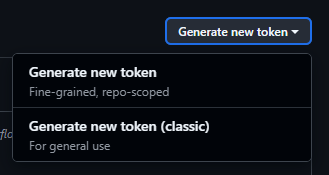
- Add Note (Note: be descriptive on where this would be used for easier management)
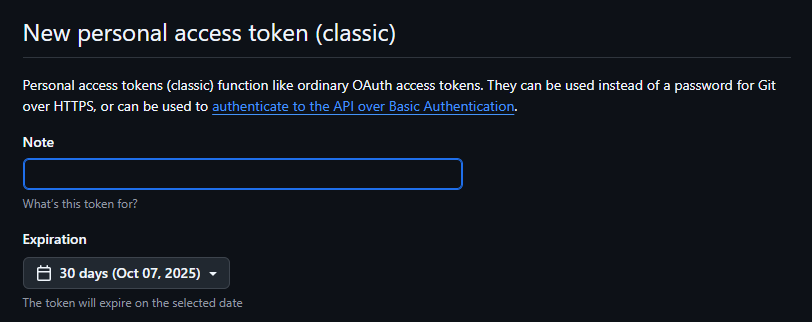
- Set Expiration Date
- It is highly-recommended to set an expiration date specially when using on devices you do not own to prevent unwanted access.
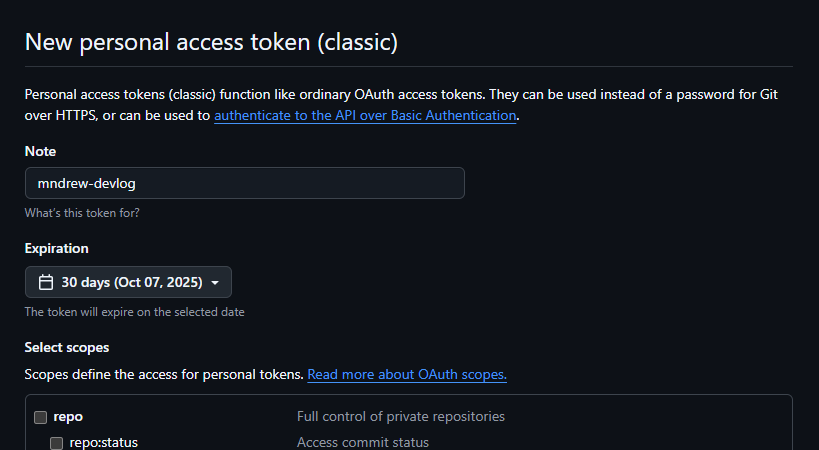
- It is highly-recommended to set an expiration date specially when using on devices you do not own to prevent unwanted access.
- Select all options containing
repo,repo:org, andadmin:public_key - Click Generate Token

- Copy the Key and paste it in the terminal.
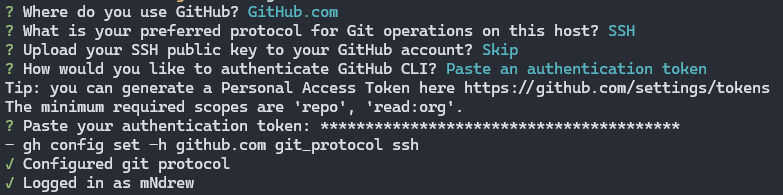
- 👍 You are now Logged In!
🆎Differences
Weigh in the methods according to your needs and risks associated. See the table below for a quick overview.
| Login to GitHub | 🪨 Hard Mode - SSH & P.A.T. | |
|---|---|---|
| Feature | Web Browser Authentication | Personal Access Token (PAT) Authentication |
| Method | Interactive browser-based login | Manual token generation, then use in place of password |
| Use Case | Interactive use on local machines | Automation, headless environments, CI/CD |
| Convenience | User-friendly for initial setup | Requires manual PAT generation and management |
| Security | Token handled by system credential store | Requires careful handling and secure storage of the PAT |
| Control | Broad access based on user permissions | Granular control over permissions via token scopes |
📜 References
[1]: Managing your personal access tokens. (n.d.). GitHub Docs. Retrieved September 7, 2025, from https://docs-internal.github.com/en/authentication/keeping-your-account-and-data-secure/managing-your-personal-access-tokens
Please feel free to comment down below for any issues and suggestions.